Shopify Automated Email Marketing Assistant
 ringli
The Shopify Automated Email Marketing Assistant is used to automatically optimize and send emails. It can automatically send personalized emails to your customers, whether it's welcoming new customers, promoting products, or reminding about items in the shopping cart. It handles it all!
Introduction
How to Use the Shopify Automated Email Marketing Assistant
The Shopify Automated Email Marketing Assistant is used to automatically optimize and send emails. It can automatically send personalized emails to your customers, whether it's welcoming new customers, promoting products, or reminding about items in the shopping cart. It handles it all!
Step 1: Connect Your Shopify Store
First, you need to open your Shopify store admin backend and obtain the Shopify store ID, customer ID, and the store's Access Token. See below for how to obtain these in the "Frequently Asked Questions" section.
Step 2: Fill in the Input Fields and Send
Once you have the relevant information from your Shopify store, you can fill it into the input fields. Below are descriptions of some input fields.
Email Subject
As the name suggests, this is the subject line of the email sent to customers.
Email Content
As the name suggests, this is the content of the email sent to customers.
Email Language
The language of the email sent to customers. If the email content is not in this language, it will be automatically translated.
Optimize Email Content
If selected "Yes," the content of the email will be optimized before sending.
Style of Optimized Email Content
If email content optimization is needed, you can choose the appropriate style, including polite, professional, sincere, clear, and positive.
- Polite: Always use polite wording in email replies, such as "Hello," "Thank you very much for your email," "Please be informed," etc.
- Professional: Maintain the professionalism of emails, using appropriate terms and tone. Ensure that when answering questions or providing information, the content is accurate and clear.
- Sincere: Express sincere gratitude or apologies if necessary. For example, "Thank you very much for your patience," "We apologize for any inconvenience caused to you."
- Clear: Ensure that the reply content is concise and clear, avoiding the use of overly complex sentences or terms to prevent misunderstandings.
- Positive: Express a willingness to help or resolve issues, such as "We will process your request as soon as possible," "Please feel free to contact us, we are here to serve you wholeheartedly."
Frequently Asked Questions
How do I obtain the Shopify store ID?
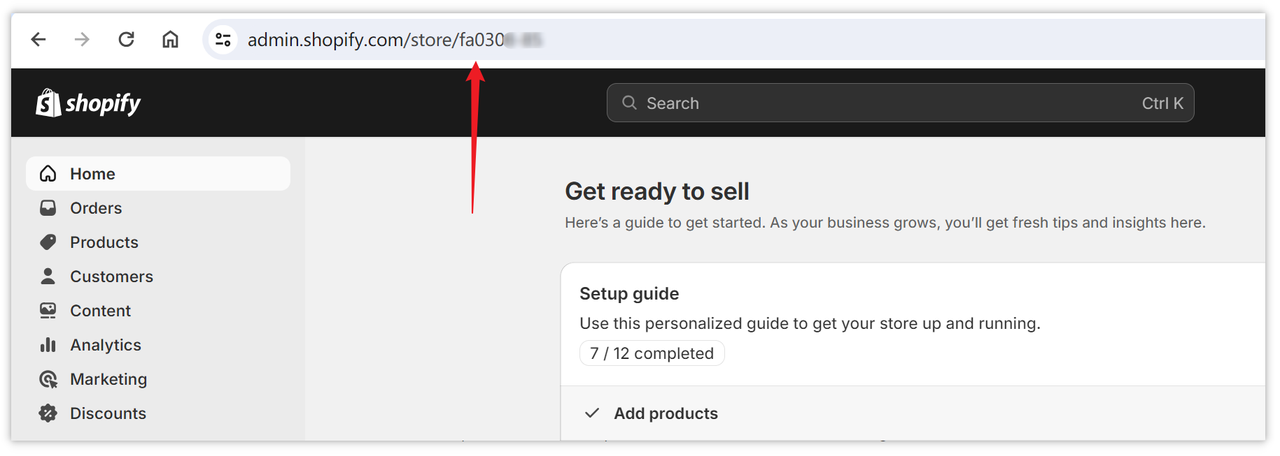
Open your Shopify store admin backend, and the last parameter displayed in the address bar is the store ID, which is your store name.
How do I obtain the Shopify customer ID?
Open your Shopify store admin backend, click on the "Customers" option, then click on the customer name to enter the details page, and the last parameter displayed in the address bar is the customer ID.
How do I obtain the Access Token for my Shopify store?
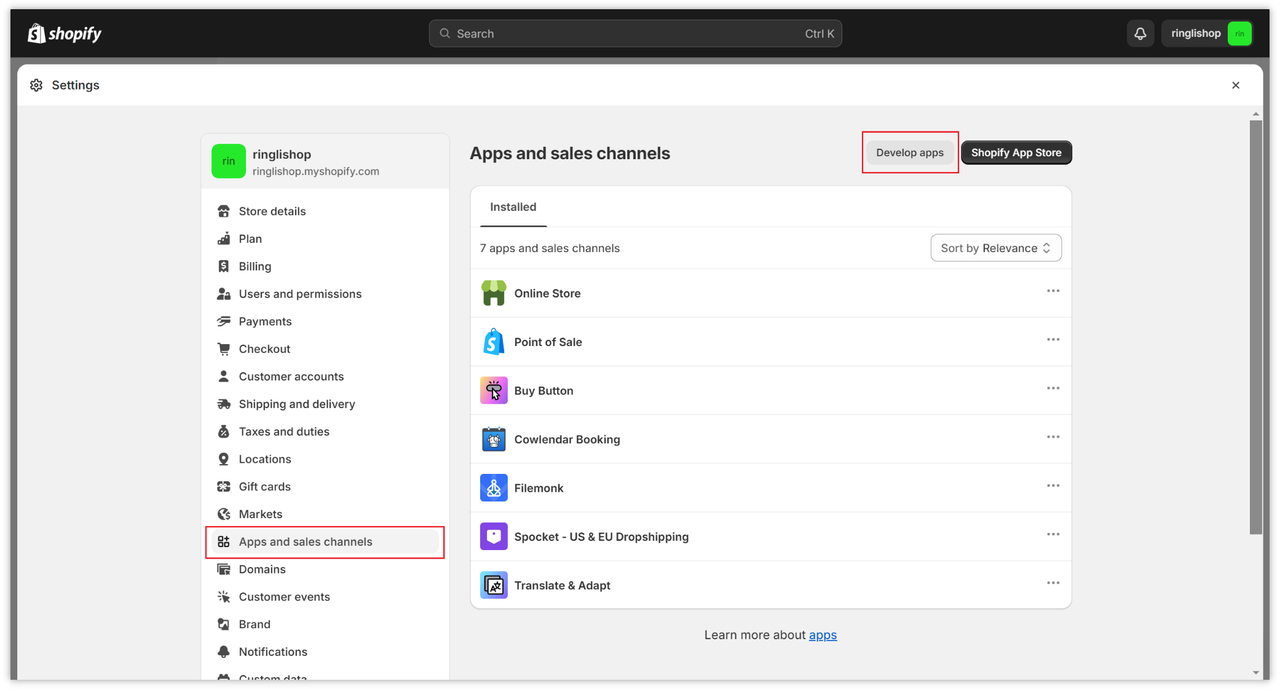
Open your Shopify store admin backend, click on Settings -> Apps and sales channels -> Develop apps, then click Create an app to create an application.
Once the app is created, you can find your Access Token in the API credentials option.
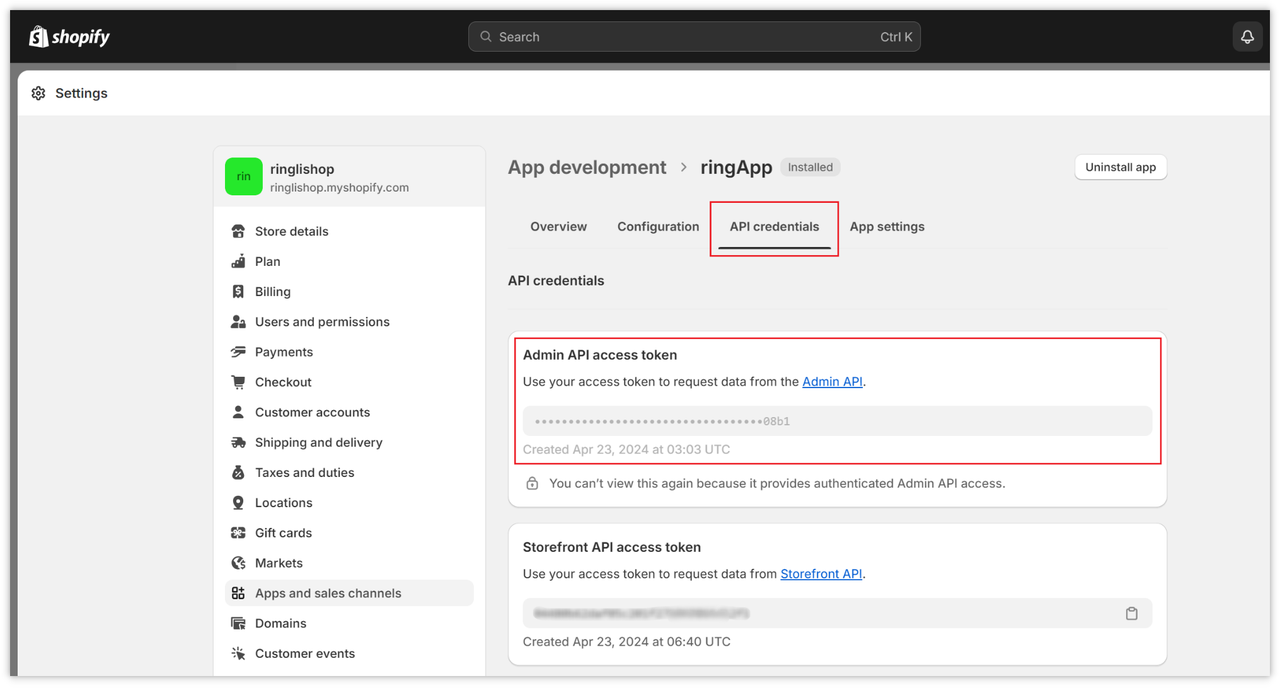
Finally, remember to check the corresponding permissions in Configuration.
Prompt Template